SnackpassSnackpassHelp Center ↗
SnackOS 2.0

Upgrade Guide

Everything you need to know about moving your restaurant to SnackOS 2.0 — what’s changing, what to expect, and where to find step-by-step instructions.

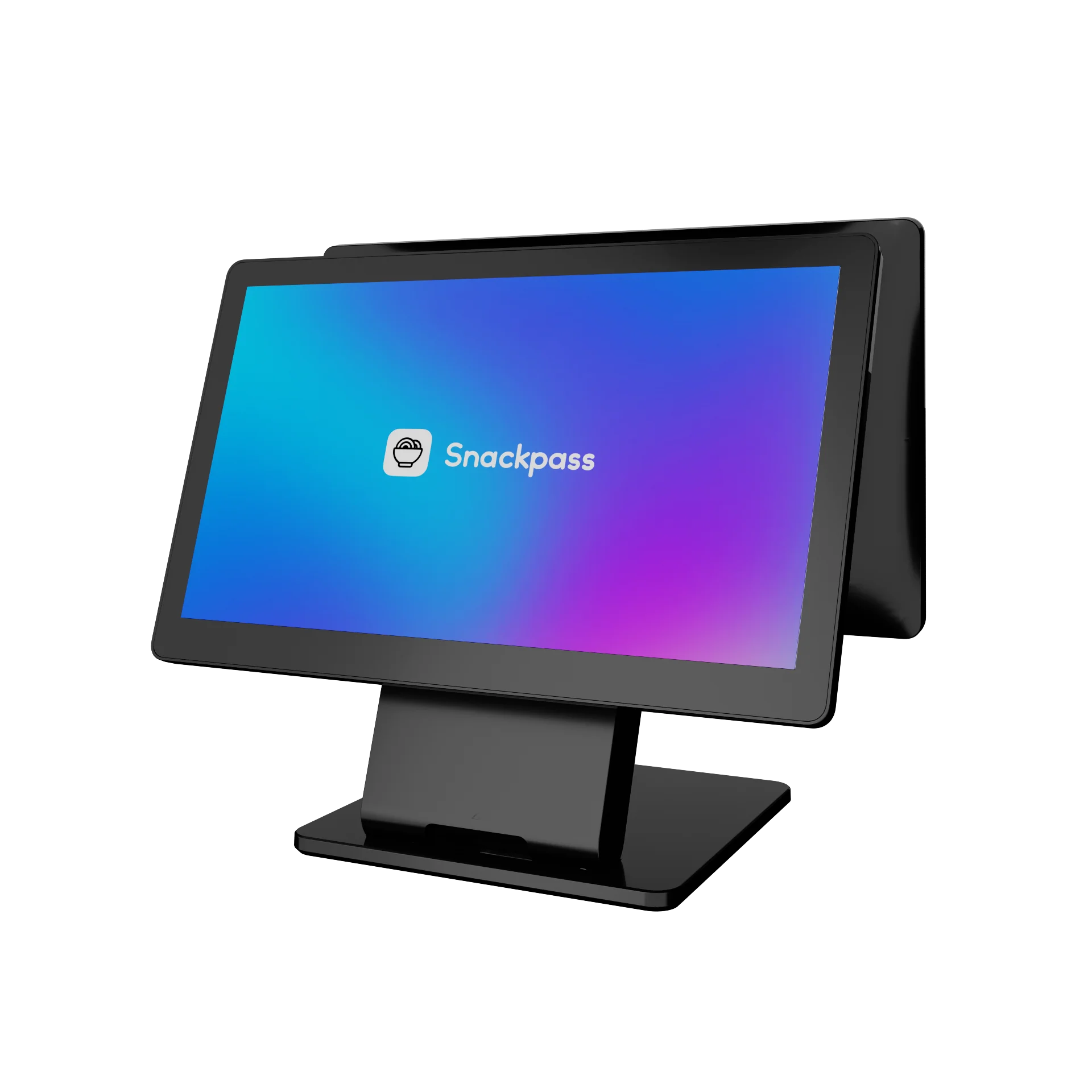
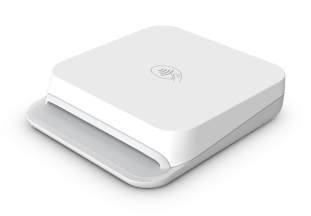
Snackpass RegisterSnackpass payment reader
!
Action will be needed to complete your SnackOS 2.0 upgrade.Make sure to review this page for details on what’s changing and what you’ll need to know for the transition.
What’s Changing

Your Guide To SnackOS 2.0

Start with the overview below. When you’re ready for step-by-step setup, each section links to the detailed Snackpass Help Center documentation.

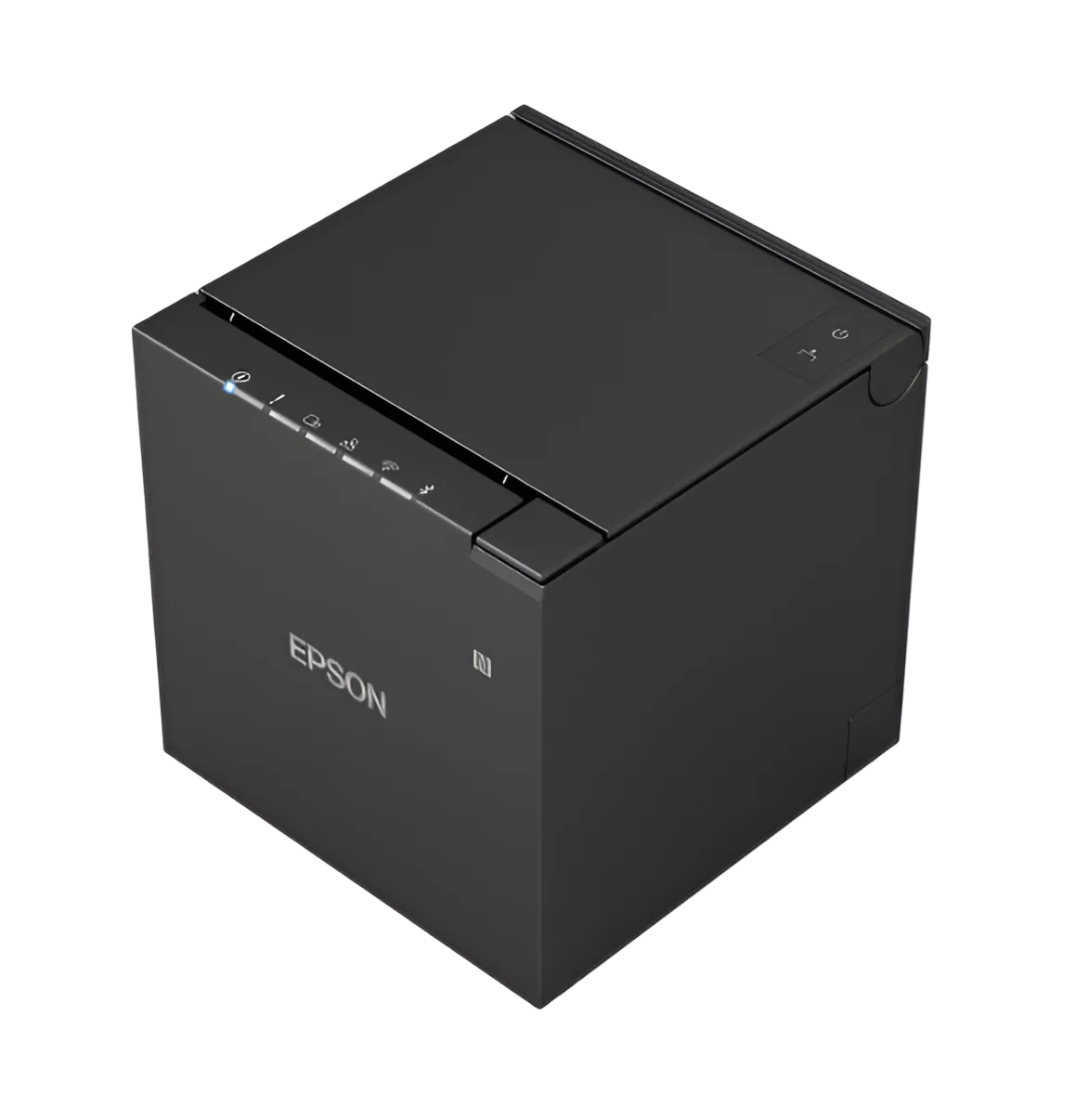
Receipt printer
Printing & Print Formats

Printing Moves Into SnackOS

WHAT CHANGED?

Wi-Fi and Ethernet printers remain supported, while printer setup and management move directly into SnackOS Settings. Bluetooth support is coming in the next few weeks.

WHAT DO I NEED TO KNOW?

If you already use a supported Wi-Fi or Ethernet printer, you can keep using the hardware. Receipt and label formats also gain more customization.

What to do → Use LAN Printing and print-format settings in SnackOS when setting up, managing, or troubleshooting printers.
Learn About LAN Printing →
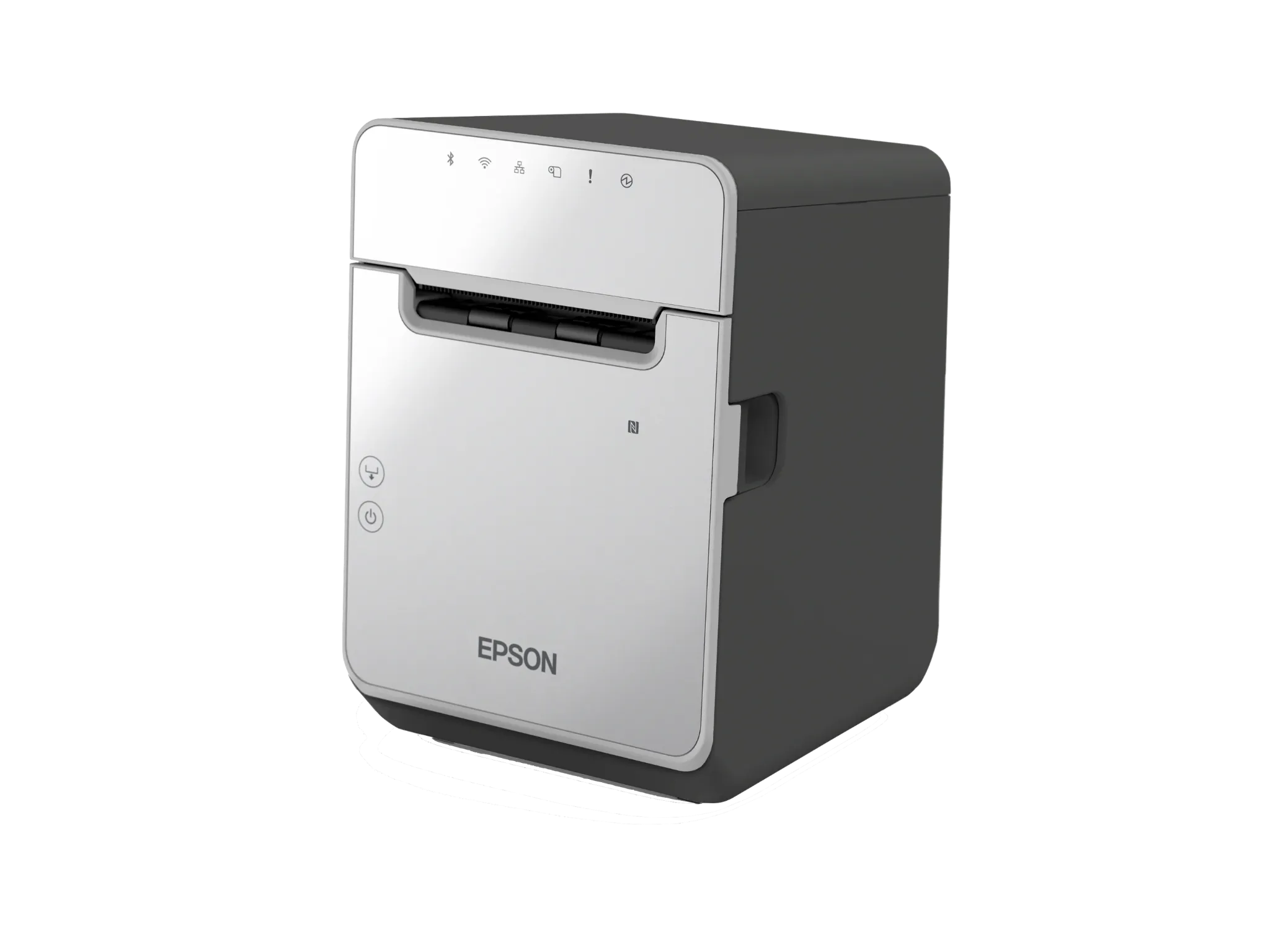
Label printer
Prep Stations

Your Stations Transfer Automatically

WHAT CHANGED?

Prep stations are managed in SnackOS 2.0 Settings and continue to support routing for printers and KDS.

WHAT DO I NEED TO KNOW?

Your existing prep stations will automatically transfer from the Dashboard to SnackOS 2.0 Settings. If you don’t have any existing prep stations, an Expo Station containing your entire menu will be created automatically.

What to do → No action is needed to transfer or create your stations. After your upgrade, you can review them in SnackOS 2.0 Settings.
Learn About Stations →
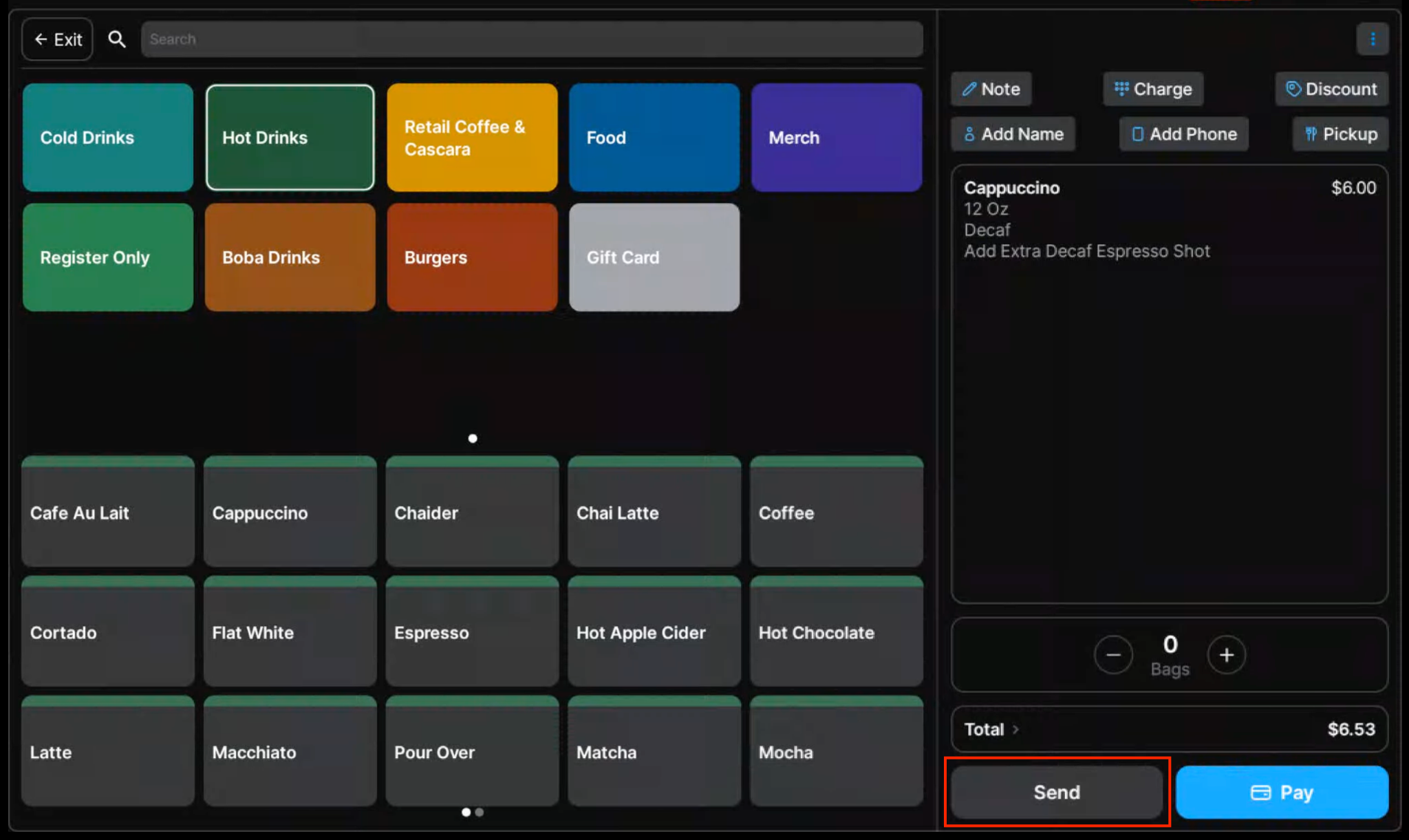
Register 2.0 interface
Register & Guest

More Workflows, Fewer Places To Look

WHAT CHANGED?

Register 2.0 brings together register, orders, and dine-in workflows. Guest combines supported guest-facing ordering experiences.

WHAT DO I NEED TO KNOW?

Some familiar functions may live in a different app than they did in SnackOS 1.0.

What to do → If you can’t find a familiar feature, check the corresponding SnackOS 2.0 app before assuming it’s unavailable.
Explore Register 2.0 →   Explore Guest →
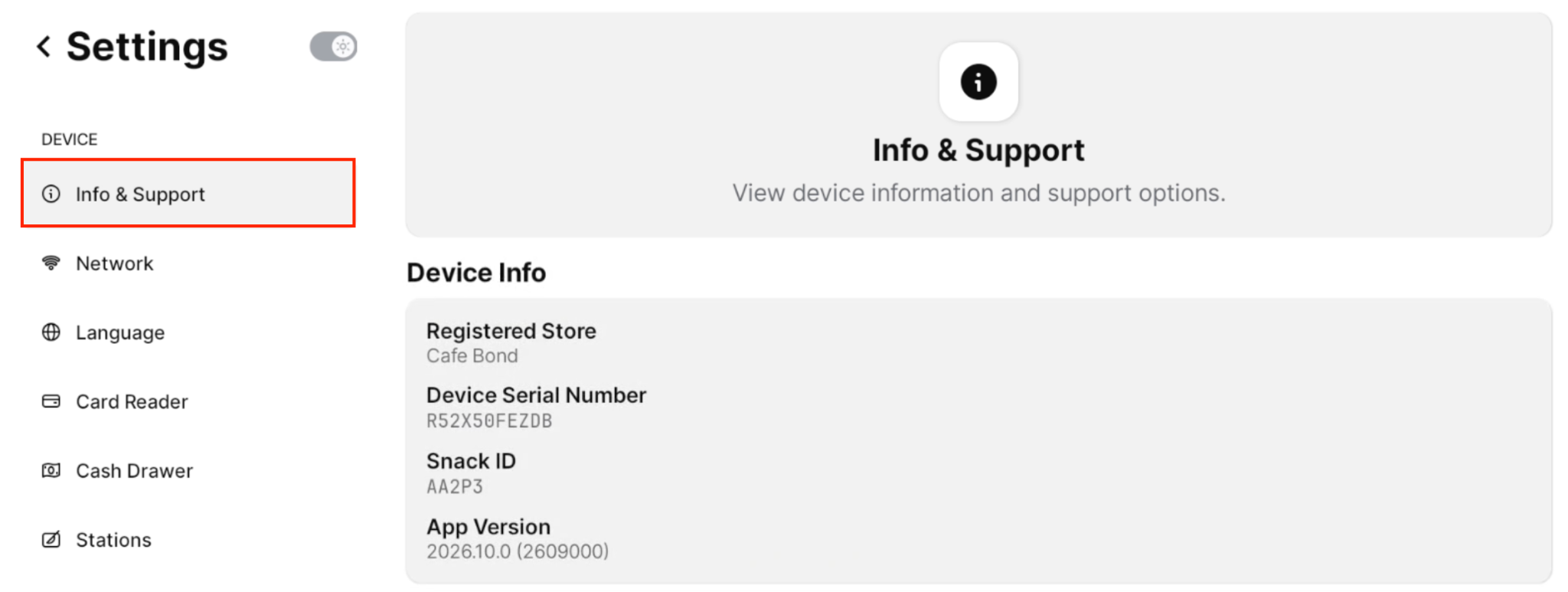
SnackOS Settings
Settings

More Control, Right On The Device

WHAT CHANGED?

More device and restaurant configuration moves from the restaurant dashboard into SnackOS Settings.

WHAT DO I NEED TO KNOW?

Printers, stations, card readers, appearance, and other device configuration may now be managed directly from SnackOS.

What to do → Follow the SnackOS 2.0 settings path shown in current Help Center instructions rather than an older dashboard path.
Explore SnackOS Settings →
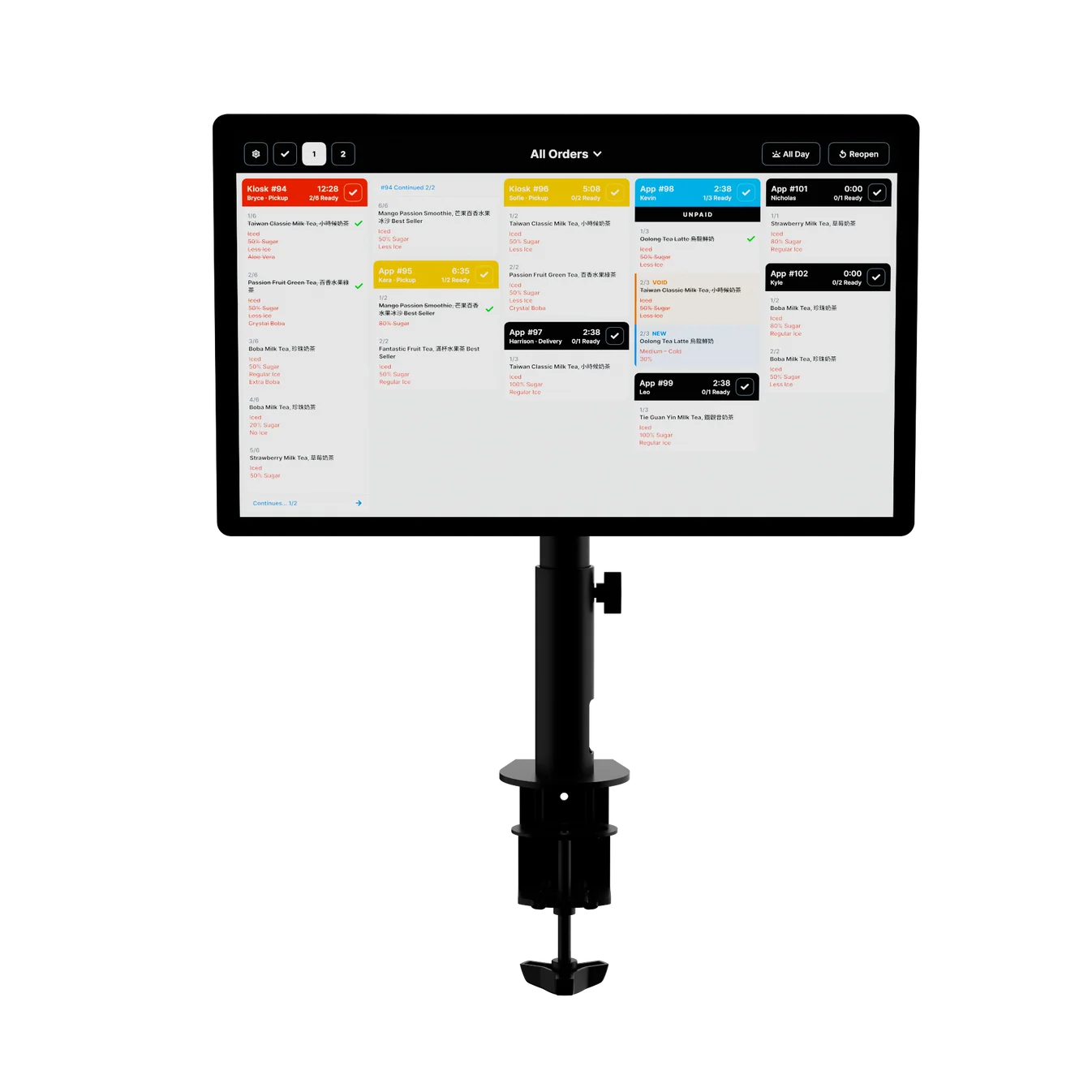
Snackpass KDS hardware
Kitchen Display System

More Control In The Kitchen

WHAT CHANGED?

KDS remains part of SnackOS 2.0, with updated workflows and additional functionality such as bulk order completion.

WHAT DO I NEED TO KNOW?

KDS uses your SnackOS 2.0 station configuration. Existing prep stations transfer automatically, and restaurants without existing prep stations will receive an Expo Station containing their entire menu.

What to do → No station setup is required for the upgrade. After upgrading, review your station routing if you want to make changes to your kitchen workflow.
Learn About KDS →
Register 2.0

More Ways To Serve Your Guests

SnackOS 2.0 adds new capabilities while keeping the core workflows your team already knows.

💳
Split Payments
🏷️
BOGO Promotions
🧾
Tax-Exempt Orders
🎁
Gift Card Balance Search
✓
KDS Bulk Completion
🖨️
Custom Print Formats
⚙️
Flexible Stations
◐
Dark & Light Mode
✨
Updated Workflows
Quick Reference

SnackOS 1.0 → SnackOS 2.0

A quick view of some of the changes you’ll notice during the transition.

Printers managed in Dashboard
→
Manage printers in SnackOS
Prep stations managed in Dashboard
→
Existing stations transfer automatically to SnackOS 2.0
Separate register/order workflows
→
More workflows in Register 2.0
Limited print customization
→
More receipt & label customization
No dark/light mode
→
Dark & light mode available
No KDS bulk completion
→
Bulk completion available
Need More Detail?

Explore The SnackOS 2.0 Help Center

This guide gives you the overview. For exact setup steps, troubleshooting, and feature instructions, use the dedicated Snackpass Help Center articles.

Open SnackOS 2.0 Help Center ↗